


You drop three grand on a flagship graphics card, haul a monstrous OLED panel onto your desk, and wire it all up with a cable you found at the bottom of a drawer. You boot up your favorite title, expecting buttery-smooth frames and eye-watering HDR fidelity. Instead, the screen flickers violently, drops to 60Hz, and washes out the colors into a miserable, muddy gray. It hurts.
- The Raw Math Behind the Pixel Firehose
- The VESA Magic Trick: Display Stream Compression
- The Dark Side of Chroma Subsampling
- The HDMI 2.1 Trap: Not All Ports Are Created Equal
- Variable Refresh Rate: The G-Sync and FreeSync War
- The Multi-Monitor Daisy Chain Dilemma
- Audio Return Channel: The Living Room Advantage
- Cable Quality: Navigating the Counterfeit Swamp
- The Graphics Card Port Scarcity
- Actionable Framework: Which One Should You Actually Plug In?
- Scenario A: The Traditional Desktop PC Gamer
- Scenario B: The OLED TV Convert
- Scenario C: The Living Room Home Theater Enthusiast
- Final Thoughts From the Trenches
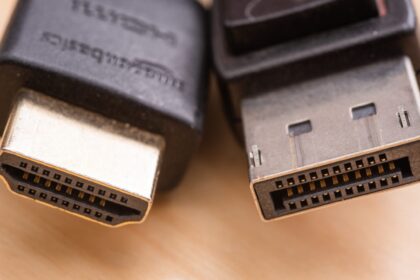
That right there is the exact moment most PC builders realize they severely underestimated the pipe connecting their hardware. We spend months agonizing over GPU memory bandwidth and CPU cache sizes, yet we completely ignore the data threshold of the physical wire pushing millions of pixels to our eyeballs. When you hit that specific performance tier, the entire conversation inevitably crashes into a highly confusing bottleneck. Suddenly, you find yourself staring at spec sheets, trying to decode the messy reality of DisplayPort 1.4 vs. HDMI 2.1 for 4K 120Hz Gaming.
It sounds like a simple choice. Just plug the cable in, right?
Wrong.
The truth is far uglier. Both of these connection standards claim they can handle ultra-high-definition, high-refresh-rate signals. Both print shiny badges on their retail boxes. But how they actually achieve that performance under the hood involves completely different mathematical compromises, compression algorithms, and hardware handshakes. I spent the better part of late 2022 troubleshooting a multi-monitor sim racing rig powered by an RTX 4090, tearing my hair out over random black screens and color banding. I learned the hard way that the spec sheet is a lie, or at least, a highly manicured version of the truth. Let me save you that same headache.
The Raw Math Behind the Pixel Firehose
To understand why this choice matters, you have to respect the sheer volume of data we are asking a thin copper wire to transport. Pushing a 4K image at 120 frames per second is not a casual request. It is a massive, unrelenting firehose of binary information.
Let us break down the math. A standard 4K resolution sits at 3840 by 2160 pixels. That totals roughly 8.3 million individual pixels flashing on your screen. Now, multiply that by 120, because you want the panel to refresh 120 times every single second to get that liquid-smooth motion clarity. We are already at nearly a billion pixels per second. But pixels are not just empty boxes. Each one needs color data. If you want true High Dynamic Range (HDR), you need 10-bit color depth, which means each of the red, green, and blue sub-pixels requires 10 bits of data.
When you calculate the total uncompressed data rate for 4K, 120Hz, 10-bit color, with full RGB color timing, you hit roughly 32.27 Gigabits per second (Gbps).
Hold that number in your head. 32.27 Gbps.
Now, let us look at the actual physical limitations of our two contenders. DisplayPort 1.4, a standard approved way back in March 2016, features a maximum total bandwidth of 32.4 Gbps. However, due to the encoding overhead required to push the signal (known as 8b/10b encoding), the actual usable data rate tops out at exactly 25.92 Gbps.
Math dictates a harsh reality here. You need 32.27 Gbps. DisplayPort 1.4 can only give you 25.92 Gbps. It falls short. Hard.
On the other side of the ring sits HDMI 2.1, introduced in 2017. It boasts a monstrous theoretical maximum bandwidth of 48 Gbps. It uses a slightly more efficient encoding scheme (16b/18b), leaving you with a massive 42.6 Gbps of usable data bandwidth.
Looking purely at those numbers, comparing DisplayPort 1.4 vs. HDMI 2.1 for 4K 120Hz Gaming seems like a completely rigged fight. HDMI 2.1 has the raw pipe to push the uncompressed signal with room to spare. DisplayPort 1.4 chokes on the math. So, case closed, pick HDMI and go home?
Not even close.
The VESA Magic Trick: Display Stream Compression
If DisplayPort 1.4 physically cannot fit an uncompressed 4K 120Hz 10-bit signal through its wires, how on earth are thousands of PC gamers currently using it to play games at exactly those settings? The answer lies in a highly controversial, yet deeply fascinating piece of technology called Display Stream Compression, or DSC.
DSC is essentially a real-time, hardware-level compression algorithm developed by VESA. When your graphics card realizes the cable cannot handle the raw data load, it activates DSC. The GPU compresses the image data on the fly, shoots it down the DisplayPort cable in a smaller package, and the hardware scaler inside your monitor rapidly decompresses it before displaying it on the screen.
Hardware purists despise the word “compression.” It implies a loss of quality. We immediately think of heavily compressed JPEG images from the early 2000s, full of blocky artifacts and smeared colors. VESA, however, aggressively markets DSC 1.2a as “visually lossless.”
Are they telling the truth?
Surprisingly, yes. I have stared at reference-grade Asus ProArt monitors from three inches away, toggling DSC on and off, trying to spot a single jagged edge or color anomaly. I couldn’t find one. The algorithm operates on a line-by-line basis, analyzing the pixels and compressing them without sacrificing the core visual integrity of the frame. Because it happens at the hardware level, the latency introduced is less than a single microsecond. For all intents and purposes, your human brain cannot perceive the delay, nor can your eyes perceive the compression.
This completely levels the playing field. Thanks to DSC, DisplayPort 1.4 punches way above its weight class. It handles the 4K 120Hz HDR signal flawlessly by intelligently shrinking the data footprint. You still get your full 10-bit color. You still get your 120 frames. You never even know the compression is happening.
The Dark Side of Chroma Subsampling
There is, unfortunately, a massive catch. What happens if you try to push that same 4K 120Hz signal through an older display or a cheaper cable that does not support DSC? The system panics. It realizes it cannot fit the data, and it resorts to a much older, much uglier method of reducing bandwidth: Chroma Subsampling.
This is where things get visually offensive.
Human eyes are incredibly sensitive to brightness (luma) but relatively terrible at noticing fine details in color (chroma). Decades ago, video engineers realized they could throw away half the color data in a video signal, and most people watching a television across the living room would never notice. This is why almost all movies and YouTube videos are encoded in a format called 4:2:0 chroma subsampling.
But a PC monitor is not a television across the living room. You sit two feet away from it. You read fine text. You look at sharp UI elements.
If your connection drops from full RGB (4:4:4) down to 4:2:2 or 4:2:0 to save bandwidth, the degradation is instant and severe. Text becomes fringed with weird, neon-colored halos. Sharp lines look blurry. The entire operating system feels subtly broken. It is a miserable way to use a computer.
To make this crystal clear, I have mapped out exactly how these formats handle the data load. Pay close attention to the bandwidth requirements here, because this is the exact metric that dictates whether your screen looks pristine or terribly smeared.
| Resolution & Refresh Rate | Color Depth | Chroma Subsampling | Data Rate Required | DP 1.4 Support (No DSC) | HDMI 2.1 Support |
|---|---|---|---|---|---|
| 4K @ 120Hz | 8-bit (SDR) | 4:4:4 (Full RGB) | 25.82 Gbps | Yes (Barely) | Yes |
| 4K @ 120Hz | 10-bit (HDR) | 4:4:4 (Full RGB) | 32.27 Gbps | No (Requires DSC) | Yes |
| 4K @ 120Hz | 10-bit (HDR) | 4:2:2 (Degraded) | 21.51 Gbps | Yes | Yes |
| 4K @ 120Hz | 10-bit (HDR) | 4:2:0 (Heavily Degraded) | 16.13 Gbps | Yes | Yes |
Looking at that table, the reality of DisplayPort 1.4 vs. HDMI 2.1 for 4K 120Hz Gaming becomes sharply focused. If you want pristine, uncompressed 10-bit HDR at 120Hz without relying on DSC magic, HDMI 2.1 is the only connection with the physical bandwidth to do it. DisplayPort 1.4 will either force you to turn on DSC, or worse, quietly downgrade your color to 4:2:2 behind your back, leaving you wondering why your expensive new monitor looks like garbage when you try to read a Word document.
The HDMI 2.1 Trap: Not All Ports Are Created Equal
So, HDMI 2.1 is the superior cable, right? Uncompressed data, massive pipe, no trickery needed. Just buy an HDMI 2.1 monitor and live happily ever after.
I wish it were that simple. The HDMI Licensing Administrator (the governing body that dictates these standards) made a shockingly hostile anti-consumer decision a few years ago. They essentially eliminated the old HDMI 2.0 certification. They allowed manufacturers to label their ports as “HDMI 2.1” even if those ports do not support the full 48 Gbps bandwidth.
Let that sink in for a second.
You can buy a monitor advertised as HDMI 2.1, bring it home, and find out it only supports 24 Gbps. The manufacturer is legally allowed to do this as long as they support at least one minor feature of the new spec, like eARC or Auto Low Latency Mode (ALLM). It is a complete minefield.
Even highly respected manufacturers play games with this. Take the incredibly popular LG C-series OLED TVs, which thousands of PC gamers use as massive desktop monitors. The older LG C9 actually had full 48 Gbps HDMI 2.1 ports. But starting with the LG CX, and continuing through the C1, C2, and C3, LG quietly downgraded the ports to 40 Gbps. They argued that since 4K 120Hz 10-bit color only requires roughly 32 Gbps anyway, nobody needed the full 48 Gbps pipe unless they were trying to push 12-bit color, which the TV panels couldn’t display anyway.
Technically, their logic is sound. A 40 Gbps port handles 4K 120Hz 10-bit perfectly fine. But it leaves a very sour taste in the mouths of enthusiasts who expect maximum specification compliance when dropping thousands of dollars on hardware. You have to read the deeply buried technical manuals to find out exactly how much bandwidth a display’s HDMI “2.1” port actually supports. With DisplayPort, you rarely encounter this nonsense. If it says DisplayPort 1.4, you generally get the full 25.92 Gbps.
Variable Refresh Rate: The G-Sync and FreeSync War
We cannot talk about gaming displays without talking about frame pacing. Pushing exactly 120 frames per second at all times is incredibly difficult, even for an RTX 4090. In heavily demanding titles like Cyberpunk 2077 with path tracing enabled, your frame rate will fluctuate wildly. If your monitor’s refresh rate stays locked at 120Hz while your GPU is only spitting out 84 frames per second, you get hideous screen tearing. The display tries to draw two different frames at the exact same time, literally ripping the image in half horizontally.
To fix this, we use Variable Refresh Rate (VRR) technologies like NVIDIA G-Sync and AMD FreeSync. These sync the monitor’s refresh cycle directly to the GPU’s output. If the GPU outputs 73 frames, the monitor dynamically drops its refresh rate to exactly 73Hz. It feels like magic.
But how do these sync technologies interact with our cables?
Historically, DisplayPort has been the absolute king of VRR. When NVIDIA first launched G-Sync, it required a proprietary hardware module installed inside the monitor. That module only accepted DisplayPort signals. For years, if you wanted true G-Sync, you had to use DisplayPort. End of story.
Today, things are much messier. NVIDIA opened up their ecosystem, allowing “G-Sync Compatible” monitors that do not require the expensive hardware module. These rely on the VESA Adaptive-Sync protocol, which works natively over DisplayPort. AMD’s FreeSync operates on the exact same underlying VESA standard.
HDMI 2.1, feeling the pressure, introduced its own native standard called HDMI Forum VRR. It works brilliantly, especially for console gamers using a PlayStation 5 or Xbox Series X. However, PC graphics cards can sometimes be incredibly stubborn about sending VRR signals over HDMI. I have seen countless setups where an NVIDIA GPU simply refuses to enable G-Sync over an HDMI connection, leaving the option completely grayed out in the control panel. You swap the cable out for a DisplayPort, and boom, the option instantly appears.
If you are strictly a PC gamer using a traditional desktop monitor, DisplayPort 1.4 remains the path of least resistance for VRR. The handshake between the graphics card and the monitor over DisplayPort is universally reliable. It just works. HDMI 2.1 VRR is getting better on PC, but it still occasionally requires annoying firmware updates or custom resolution utility tweaks to force the handshake.
The Multi-Monitor Daisy Chain Dilemma
Let us throw another wrench into the gears. What if you aren’t just running one massive 4K screen? What if you are building a dual or triple monitor setup for flight simulation or aggressive multitasking?
Here is where DisplayPort entirely dominates the conversation. DisplayPort supports a feature called Multi-Stream Transport (MST). This allows you to plug a single DisplayPort cable into your graphics card, run it to your primary monitor, and then run a second short cable from the primary monitor directly into the secondary monitor. You “daisy chain” them together. The graphics card sees them as two separate, distinct displays, and routes the data accordingly.
It is brilliant for cable management. You only have one thick wire running down the back of your desk to your PC tower.
HDMI cannot do this. It has never been able to do this. HDMI is a strict point-to-point connection standard. One port on the GPU to one port on the display. If you have three monitors, you must run three separate, lengthy HDMI cables all the way back to your graphics card. It creates a tangled, unmanageable nightmare behind your desk.
Now, to be completely fair, pushing dual 4K 120Hz signals through a single DisplayPort 1.4 cable via MST is going to absolutely max out the bandwidth, forcing heavy DSC compression on both panels. But the fact that the functionality exists makes DisplayPort highly attractive for productivity-focused power users who game on the side.
Audio Return Channel: The Living Room Advantage
Let us flip the perspective. What if you are not sitting at a desk? What if you built a gorgeous small-form-factor PC and slotted it into your living room entertainment center, hooking it up to a home theater receiver and a massive OLED TV?
When evaluating DisplayPort 1.4 vs. HDMI 2.1 for 4K 120Hz Gaming in a living room environment, the entire dynamic shifts. DisplayPort suddenly becomes practically useless, and HDMI takes the throne. Why? Audio routing.
HDMI 2.1 features a crucial technology called eARC (Enhanced Audio Return Channel). This allows your TV to act as an audio hub. You plug your PC directly into the TV via HDMI to get the lowest possible input lag and the best video quality. Then, the TV takes the uncompressed, high-bitrate audio signal (like Dolby Atmos or DTS:X) and sends it backward down a separate HDMI cable into your soundbar or AV receiver.
DisplayPort has absolutely no equivalent to eARC. It can transmit basic audio to the tiny, terrible speakers built into most desktop monitors, but it cannot route high-end, uncompressed surround sound back out to a secondary audio device. If you use DisplayPort in a home theater setup, you have to run a completely separate audio cable (like an optical TOSLINK, which doesn’t support uncompressed Atmos) from your PC to your receiver, introducing massive audio sync delays.
For living room gamers, HDMI 2.1 is mandatory. The eARC functionality alone dictates the entire setup architecture.
Cable Quality: Navigating the Counterfeit Swamp
You can understand the math, pick the right port, configure the compression settings perfectly, and still end up staring at a black screen if the physical wire connecting the devices is garbage. The market is currently flooded with cheap, counterfeit cables that print “8K 120Hz” on the bag but lack the internal shielding to handle the actual high-frequency data transmission.
When a cable fails to deliver the required bandwidth, it rarely degrades gracefully. You don’t just get a slightly softer image. The signal integrity breaks down, resulting in random screen blackouts that last for three to five seconds, usually right in the middle of a crucial firefight in a competitive shooter. It is infuriating.
To avoid this, you have to be incredibly specific about what you buy. You cannot trust Amazon reviews, and you certainly cannot trust the marketing jargon on the box. You have to look for very specific, verifiable certification labels.
Here is exactly how you bulletproof your physical connection:
- For DisplayPort: You must look for the official “VESA Certified DisplayPort” logo. VESA runs an incredibly strict testing facility. If a cable passes their test, it is guaranteed to handle the full 32.4 Gbps bandwidth without signal dropouts. Do not buy cables that simply say “DP 1.4 compatible.” Look for the actual VESA certification badge.
- For HDMI: You are looking for a silver holographic sticker that says “Ultra High Speed HDMI Cable.” This is the official certification from the HDMI Forum guaranteeing 48 Gbps bandwidth. You can actually scan the QR code on the sticker with a proprietary smartphone app to verify its authenticity against a central database. If it doesn’t have the scannable sticker, leave it on the shelf.
- The Length Problem: Standard passive copper cables begin to lose signal integrity rapidly over distance. For DisplayPort 1.4, anything over 3 meters (about 10 feet) is highly risky for 4K 120Hz. For HDMI 2.1, you might stretch it to 4 meters with a very high-quality copper wire.
- The Fiber Optic Solution: If you need to run a cable across a room or through a wall (say, 10 meters to a TV), you absolutely must buy an Active Optical Cable (AOC). These cables have tiny microchips in the connectors that convert the electrical signal from your GPU into light, shoot it down a glass fiber, and convert it back to electricity at the display. They are expensive, highly fragile (do not bend them sharply), and directional (one end must plug into the source, the other into the display), but they completely solve the distance bandwidth drop-off.
I cannot stress this enough. Spending two thousand dollars on a GPU and cheaping out on a ten-dollar gas station cable is a recipe for absolute misery.
The Graphics Card Port Scarcity
There is a harsh physical reality we have to acknowledge when finalizing the decision of DisplayPort 1.4 vs. HDMI 2.1 for 4K 120Hz Gaming. Look at the back of your graphics card. Take a really close look at the I/O shield.
Notice a pattern?
Almost every modern high-end GPU, from the RTX 4070 up to the massive AMD Radeon RX 7900 XTX, features a very specific port layout: Three DisplayPort connections and exactly one HDMI connection. The manufacturers heavily bias their hardware toward DisplayPort.
This creates a massive logistical headache if you want to run multiple HDMI 2.1 monitors. You simply do not have the ports for it. If you buy three identical HDMI 2.1 displays, you can plug one in natively, but the other two will require active DisplayPort-to-HDMI adapters. These adapters are notoriously finicky, run exceptionally hot, and frequently break VRR compatibility or limit bandwidth, forcing chroma subsampling.
PC hardware is fundamentally built around the DisplayPort standard. It is an open, royalty-free standard, whereas manufacturers have to pay licensing fees to include HDMI ports. Because of this, GPU makers will always give you more DisplayPorts. If you are building a multi-monitor setup, you almost have no choice but to rely on DisplayPort, saving that single precious HDMI 2.1 port for a secondary device like an OLED TV or an AV receiver.
Actionable Framework: Which One Should You Actually Plug In?
We have covered the brutal math, the compression magic, the chroma degradation, and the physical constraints. By now, your head is likely spinning with acronyms. Gbps, DSC, VRR, eARC. It is a lot to process. But we need to translate all of this deep technical theory into a concrete, real-world decision.
When you sit down at your desk with a handful of expensive cables, trying to settle the great debate of DisplayPort 1.4 vs. HDMI 2.1 for 4K 120Hz Gaming once and for all, follow this exact logic map based on your specific hardware environment.
Scenario A: The Traditional Desktop PC Gamer
You have a powerful tower PC sitting on a desk, connected to a dedicated high-end gaming monitor (like an Asus ROG, an Alienware QD-OLED, or an LG UltraGear). You use a gaming headset or simple desktop speakers for audio.
Your Choice: DisplayPort 1.4.
Why? Because PC monitors are engineered from the ground up to handshake perfectly with DisplayPort. The G-Sync or FreeSync connection will be flawless, instant, and require zero tinkering in the control panel. Yes, you will be relying on Display Stream Compression to hit that 4K 120Hz 10-bit target, but as we established, VESA’s DSC algorithm is genuinely visually lossless. You will never see the difference, your input lag remains virtually zero, and you leave that single HDMI port on your graphics card open just in case you ever want to run a cable to a TV in the future.
Scenario B: The OLED TV Convert
You decided that traditional monitors are overpriced and too small. You bought an LG C3, a Samsung S90C, or another flagship 42-inch OLED television to use as your primary PC display. You sit at a desk, but you are using television architecture.
Your Choice: HDMI 2.1.
Why? Televisions generally do not have DisplayPort inputs. Some modern ones are starting to include them, but it is incredibly rare. You have to use HDMI. More importantly, televisions possess the full 40-48 Gbps bandwidth required to push the uncompressed 4K 120Hz 10-bit signal natively. Just ensure you buy a certified Ultra High Speed cable, and go into your TV’s settings menu to manually enable “PC Mode” or “Input Signal Plus” on that specific HDMI port. If you skip that step, the TV will incorrectly assume it is connected to a standard Blu-ray player and artificially cap your refresh rate and color depth.
Scenario C: The Living Room Home Theater Enthusiast
Your PC is in the living room, connected to an AV receiver or a high-end soundbar system, which then passes the video signal up to a wall-mounted TV.
Your Choice: HDMI 2.1.
Why? eARC. DisplayPort cannot handle the complex two-way audio routing required to send uncompressed Dolby Atmos from your PC, into the TV, and back down into your sound system. HDMI handles this natively. You will likely need to invest in a costly Active Optical Cable if the PC is located far from the screen, but it is the only viable method for a proper home theater PC setup.
Final Thoughts From the Trenches
It is genuinely frustrating that we have to think this hard about wires. We want technology to be invisible. We want to plug a square peg into a square hole and watch the magic happen. But high-end PC gaming operates on the absolute bleeding edge of consumer data transmission. We are pushing consumer hardware to limits that, frankly, were reserved for multi-million-dollar server racks just a decade ago.
Do not let a bad cable ruin a brilliant machine. Take ten minutes, check your monitor’s actual port specifications, verify your cable certifications, and make sure your graphics card control panel confirms you are outputting the full 10-bit color at 120Hz. Once you get that perfect, uncompressed, tear-free image locked in, you can finally stop staring at spec sheets and get back to actually playing the games.