

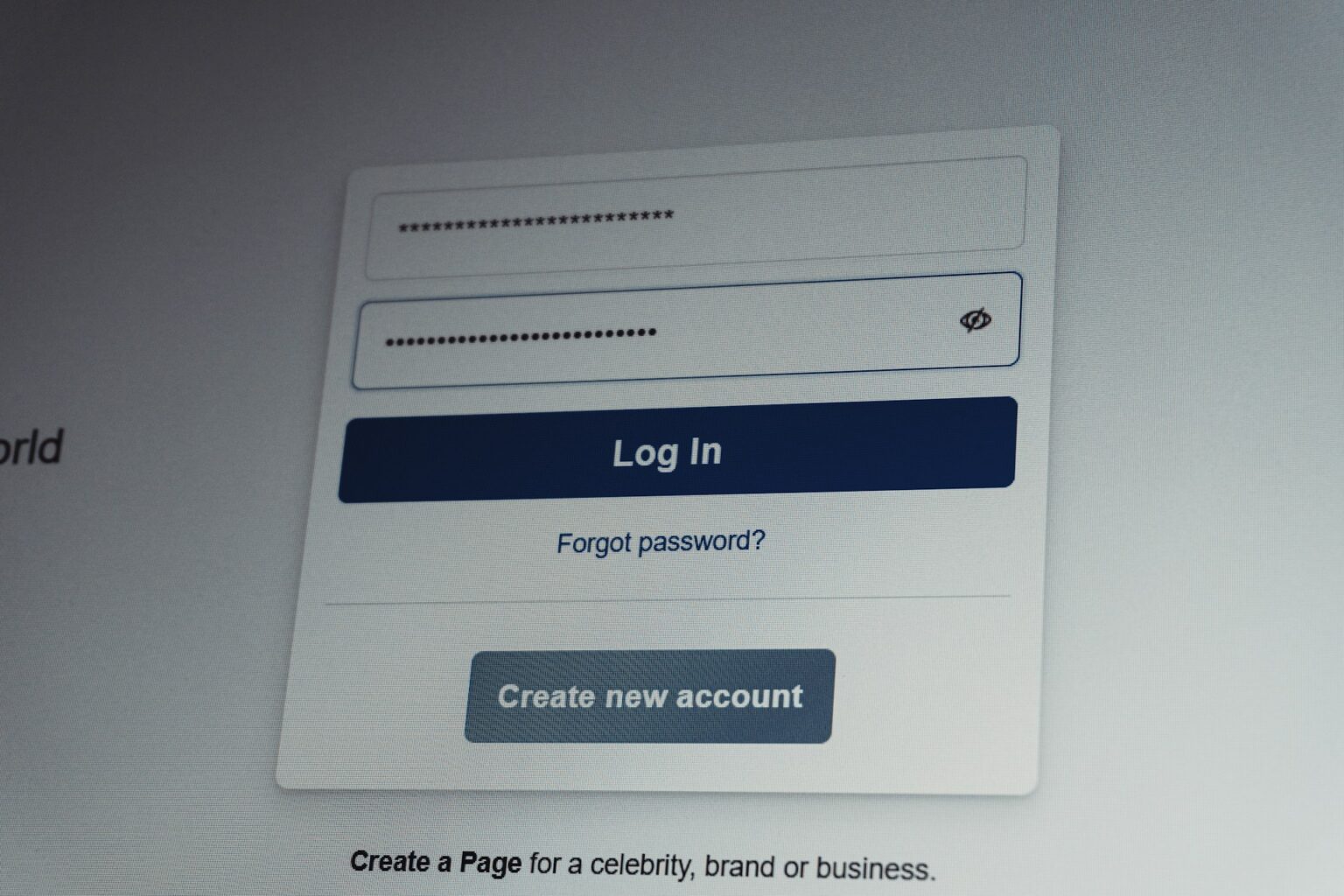

There’s a Google Sheet in your company. It might be called “Logins,” “Accounts” or, my favourite, “DO NOT SHARE.” It has three columns: service, username, password. Somebody started it in the early days because it was faster than asking around every time.
- Why does every team end up with a password spreadsheet?
- What actually goes wrong?
- “But our sheet is private and only the team can see it”
- How should a team share passwords instead?
- The part people underestimate: it has to be easier than the sheet
- How to migrate off the spreadsheet in an afternoon
- Is a spreadsheet ever fine?
If that’s you, you’re not careless. You’re normal. The spreadsheet exists because it solves a real problem: five people need the same login, and nobody wants to be the bottleneck.
The trouble is what it quietly turns into.
Why does every team end up with a password spreadsheet?
Because sharing is the actual job, and most tools weren’t built for it.
Personal password managers are great at one person, one vault. Browsers save passwords per profile. Neither helps when marketing needs the LinkedIn page login, finance needs the bank portal and the new hire needs both by Monday.
So someone opens a sheet. It’s free, it’s already in Google Workspace, and everyone knows how to use it. Problem solved, for about a year.
What actually goes wrong?
Not a dramatic hack, usually. More like a slow leak.
- Everyone sees everything. The intern who needs the Canva login can also see the payroll system. There’s no way to share one row with one person.
- It gets copied. Someone downloads it as a CSV “just for a sec.” Now it lives in a Downloads folder forever.
- Access never shrinks. People get added to the sheet. Almost nobody gets removed. Check the share settings on yours right now; I’d bet there’s a former employee or an old agency on it.
- Passwords go stale or get weaker. Changing a shared password means updating the sheet and telling everyone. So people don’t. Or they pick something easy to type.
- No history. If something goes wrong, you can’t tell who looked at which password, or when.
There’s also the reuse problem. When passwords are a hassle, people recycle them. Verizon’s 2025 research on infostealer logs found that in the median case, only 49% of a person’s passwords were distinct. A shared sheet full of “Company2024!” variations doesn’t help.
“But our sheet is private and only the team can see it”
It’s private until one account on the share list gets phished. Then every password in it is exposed at once, in plain text, neatly labelled.
That’s the core issue. A spreadsheet stores secrets in the clear and trusts the sharing settings to protect them. A password manager encrypts each item and controls who can decrypt it. Same convenience on the surface, very different failure mode underneath.
How should a team share passwords instead?
Whatever tool you use, good team password sharing has a few things in common:
- Share per item or per group, not all or nothing. Finance sees finance logins. Marketing sees marketing logins.
- Access follows the person. When someone leaves or changes teams, their access changes without anyone editing a list by hand.
- Encryption, not just permissions. Passwords should be encrypted so that even a leaked export or a compromised server doesn’t hand over readable secrets.
- Autofill, so nobody needs to see the password at all. The less often a password is copied and pasted, the fewer places it ends up.
- A log. Who accessed what, and when. You’ll rarely look at it, until the one day you really need it.
- 2FA codes live next to the login. Otherwise the one person with the authenticator app on their phone becomes the bottleneck again.
The part people underestimate: it has to be easier than the sheet
This is where a lot of rollouts fail. If the new tool means a new account, a new master password and a new app nobody asked for, people drift back to the spreadsheet within a month.
For teams on Google Workspace, the least-friction option is usually a password manager that uses the Google account people already have. No extra master password, no separate user list to maintain, and your existing Google Groups decide who sees what. Passwd is built that way, and there are other options too. The point is to pick one where “log in” is something people already know how to do.
How to migrate off the spreadsheet in an afternoon
You don’t need a project plan. You need a couple of hours.
- Make a copy of the sheet and add a column for “who actually needs this.”
- Delete what’s dead. You’ll be surprised how many rows are for tools you cancelled in 2023.
- Group what’s left by team: marketing, finance, dev, ops. These become your shared folders or groups.
- Import into the password manager (most accept CSV) and share each group with the right people.
- Rotate the important ones. Anything with money or customer data behind it gets a fresh password, since the old ones have been sitting in plain text.
- Delete the sheet. Not archive. Delete. Then empty the trash.
- Tell people once, clearly: where passwords live now, and that the sheet is gone.
Step 6 is the one everyone hesitates on. Do it anyway. As long as the sheet exists, someone will keep using it.
Is a spreadsheet ever fine?
For a two-person company with a handful of low-stakes logins? It’s not the end of the world, as long as 2FA is on for the Google accounts that can open it.
But the moment you have more than a few people, anyone leaving, or any login that can move money, the sheet stops being a shortcut and starts being a risk you’re carrying without noticing. Better to switch while it’s an afternoon of work, not a post-incident clean-up.