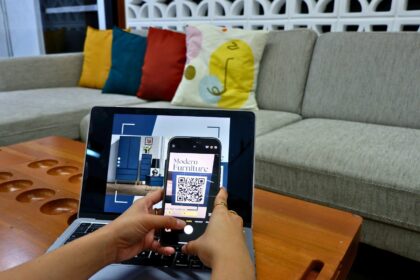

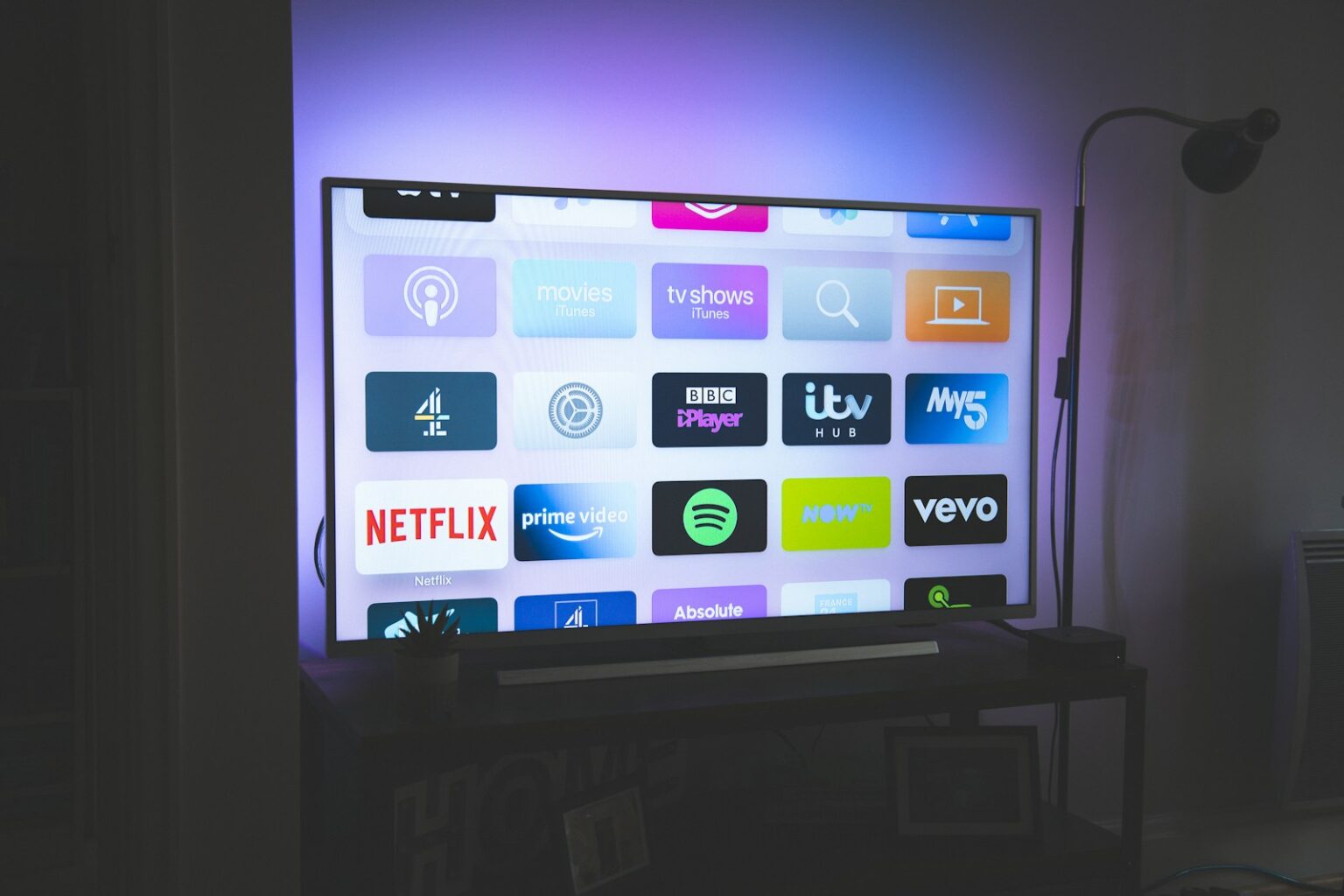

This friendly guide helps you learn quick, practical ways to check your screen for built-in lenses and mics. Many modern models include cameras for video calls, facial recognition, or gesture control, and remotes often carry always-ready voice inputs.
- Why it matters: privacy, security, and your smart TV’s “smart” features
- How To Find If Smart TV Has Camera Or Microphone
- Where manufacturers hide lenses and mics on modern TVs
- Brand and model cues: Samsung, LG, Sony, Roku, and Vizio
- Lock down your settings: disable cameras, mics, and Automatic Content Recognition
- Conclusion
- FAQ
- Does my TV include a built-in camera or microphone?
- Where do manufacturers usually place lenses and mics on modern sets?
- Which brands are known for visible or retractable cameras?
- How can I discover camera or mic functions through the settings menu?
- What is Automatic Content Recognition (ACR) and how does it relate to privacy?
- Where do I disable ACR on common brands?
- Can companion apps reveal hidden camera or mic features?
- How do I physically inspect the set for a concealed lens or mic?
- What quick steps stop camera or mic access right now?
- Could a camera be hidden inside the bezel or behind the screen?
- Are voice remotes always listening, and how do I control them?
- What legal and privacy settings should I review after buying a new set?
- How do firmware updates affect camera and microphone behavior?
- What accessories might add cameras or mics after purchase?
- Who should I contact if I suspect a hidden camera or unexpected audio recording?
- Where can I learn model-specific camera and mic details?
Start with documentation. Look up the owner’s manual or the model page on the maker’s site, such as Samsung or LG, for clear specifications. You can also scan the top bezel for a small lens or a retractable module on certain models.
Next, check on-screen menus and brand apps like Google Home to reveal camera and voice features. Also review privacy settings for Automatic Content Recognition, which may collect viewing data, and learn the exact toggles brands provide to stop that tracking.
For extra protection, keep firmware current, consider a router-level VPN, and inspect ports and vents for third-party add-ons. This short guide gives the steps you can take today to protect privacy and control what data your set shares.
Why it matters: privacy, security, and your smart TV’s “smart” features
Built-in optics and voice inputs can change a living-room display into a hub for calls, gesture control, and personalized suggestions. These conveniences shape the viewing experience and unlock extra features on many sets.
What cameras and microphones enable
Big-screen video calls via apps like Zoom or Google Meet feel more natural on large displays. Cameras can also power gesture navigation and facial recognition to tailor apps and recommendations. Small mics in the set or voice remotes let you control playback and search hands-free.
Risks to consider today
Automatic Content Recognition and background services often collect viewing data for ads and suggestions. Many manufacturers enable these services by default, so privacy settings matter from the first setup.
- Cameras and mics unlock useful features, but they introduce privacy trade-offs you should weigh.
- ACR can identify content and share data with partners; check names like LG Live Plus or Samsung Viewing Information Services.
- Network exposure is real: keep firmware current and consider a router-level VPN to strengthen security.
Review account retention, clear history when possible, and place gear where a camera won’t capture more than you expect. Small steps protect data while letting you enjoy the full experience.
How To Find If Smart TV Has Camera Or Microphone
Start with the owner’s manual. Visit the manufacturer support page, enter your exact model, and download the PDF manual or spec sheet. The manual often lists built-in camera and mic hardware and privacy options.
Check on-screen menus next. Open the settings and scan for Camera Settings, Video Call, Gesture Control, Voice Recognition, or permission prompts. These menu entries usually appear only on sets that include the feature.
- Use companion apps: Google Home and brand apps sometimes surface camera setup flows or video-call tiles, which confirms hardware even when it’s hard to spot.
- Do a physical inspection: look along the top-center bezel for a tiny lens, a retractable module, or a small shutter. Shine a phone flashlight to catch a lens glint.
- Watch for add-ons: inspect USB ports, vents, and the back panel for clip-on webcams or strange dongles and remove unfamiliar devices to stop unwanted recording.
Keep notes on what you find and cross-check manufacturer information and user reports before making privacy changes. This quick guide gives practical ways to reduce data exposure while keeping useful options available.
Where manufacturers hide lenses and mics on modern TVs
Manufacturers hide lenses and mics in subtle spots along the frame, so a quick sweep of the screen edge pays off.
Most tvs place a camera in the top-center bezel for a wide view of the room. You’ll also see cameras tucked into corners or, less often, along the bottom edge.
Hidden placements include lenses built inside a bezel behind a sliding shutter or a retractable pop-up module that appears only when active. Samsung’s F Series and some LG models use that pop-up approach.
- Shine a light at the frame and look for a circular glint that signals a lens.
- Small pinholes near the camera often mark microphone locations on the chassis.
- Many voice remotes carry always-ready mics; check the remote settings to mute or disable voice listening.
- When a hidden camera can’t be found visually, match your set to official images and diagrams for component information.
Quick safeguards help now: cover any visible lens with opaque tape or use a stick-on shutter. These simple steps block unwanted recording while you adjust settings or update firmware to better protect your data and privacy.
Brand and model cues: Samsung, LG, Sony, Roku, and Vizio
Some lines ship with pop-up lenses, while others keep things minimal and focused on streaming. Use brand cues to tell what a set includes and where privacy controls live.
Samsung often used a visible pop-up lens on its F Series that you press to expand or retract. Many newer displays skip a built-in camera and support a SlimFit accessory you buy and attach. Check the manual or support page for your model before assuming optics are present.
LG has placed retractable optics on select Cinema 3D sets, and manuals usually list built-in microphones. Open All Settings and scan General options for camera-dependent features.
Sony offers models with group-call support. Look in menus for Video Call or Camera permissions to confirm whether conferencing features exist.
- Roku-branded tvs generally avoid integrated cameras and aim at pure streaming simplicity.
- Vizio also tends not to embed optics; both brands expose content recognition and viewing data in clear menu paths.
Every company stores ACR and viewing toggles in different places. Use the listed menu terms for each brand when you want to limit tracking. If a set uses an accessory lens, disconnect it for peace of mind and only attach it when video calling is needed.
Lock down your settings: disable cameras, mics, and Automatic Content Recognition
Start by opening the settings screen on your device and look for privacy and viewing controls. Follow brand-specific paths below to stop automatic content recognition and reduce persistent listening.
ACR off by brand
- LG: Settings > All Settings > General > Live Plus — toggle off Live Plus to stop content profiling.
- Samsung: Settings > Support > Terms & Policies > Viewing Information Services — disable viewing services and related terms.
- Roku: Settings > Privacy > Smart TV Experience — turn off use of information from TV inputs and smart features.
- Vizio: System > Reset & Admin > Viewing Data — switch off viewing data collection for the screen.
Kill voice and mic features
While in the same settings menu, search app permissions and voice recognition options. Disable camera permissions and turn off voice commands or Voice Guide where present.
Many remotes include a physical mic mute or a setting to mute the remote mic. Use that control for instant silence.
Immediate safeguards
- Cover any visible lens with opaque tape or a stick-on sliding cover for instant protection.
- Keep firmware current to close security gaps and check update notes for new privacy options.
- Consider a router-level VPN to protect data from all connected devices, or take the device offline by forgetting Wi‑Fi or unplugging Ethernet.
- Use external streaming boxes you control if you want tighter app and account management.
Review apps and account settings regularly and sign out of unused services. For a step-by-step consumer guide that complements these tips, see this privacy walkthrough.
Conclusion
Wrap up with a brief audit. Confirm the manual and model page, scan the on‑screen menu for video or voice entries, and use companion apps for a quick hardware check.
Cover any visible lens, mute remote voice input, and turn off automatic content recognition in privacy settings for better control over data and viewing suggestions.
Keep firmware current, remove unknown accessories from USB or vents, and consider using an external streaming device or taking the screen offline when tighter security is needed.
With a few minutes of attention you can enjoy streaming and video features while protecting privacy and keeping control of voice and recognition settings in your home.
FAQ
Does my TV include a built-in camera or microphone?
Check the owner’s manual, the manufacturer’s model page, and the technical spec sheet first. Look for terms like camera, video call, microphone, voice recognition, or facial recognition. If documentation is unclear, open the settings menu and search for camera, voice, or privacy options, or inspect the top bezel for a lens or pinhole mic.
Where do manufacturers usually place lenses and mics on modern sets?
Common locations are the top-center bezel, corners, or behind a small sliding shutter. Microphones often appear as tiny pinholes on the frame or are built into the included voice remote. Some higher-end models use retractable modules or SlimFit-style accessories that attach near the screen.
Which brands are known for visible or retractable cameras?
Samsung and LG often use visible or retractable lenses on models with video call features. Sony includes camera support on select models that focus on conferencing or social apps. Roku and Vizio typically avoid built-in cameras on many models, but they may use Automatic Content Recognition (ACR) for viewing data instead of a lens.
How can I discover camera or mic functions through the settings menu?
Open Settings and look under Privacy, General, Support, or Accessibility. Search for voice recognition, microphone, camera, video call, or viewing data. Brand menus differ, so use the search field if available. Companion apps like Google Home, Samsung SmartThings, or LG ThinQ can also list connected sensors.
What is Automatic Content Recognition (ACR) and how does it relate to privacy?
ACR identifies what’s on screen to personalize ads and recommendations. It doesn’t require a camera but may collect viewing habits and metadata. You can usually turn ACR off in privacy or viewing data menus—each brand stores this option in a different place.
Where do I disable ACR on common brands?
LG: Settings > All Settings > General > Live Plus (or Viewing Data). Samsung: Settings > Support > Terms & Policies > Viewing Information Services. Roku: Settings > Privacy > Smart TV Experience. Vizio: System > Reset & Admin > Viewing Data. Menus change with firmware, so search within settings if you don’t see the exact path.
Can companion apps reveal hidden camera or mic features?
Yes. Apps like Google Home, Samsung SmartThings, or brand-specific remotes can display device capabilities and permissions. If an app requests camera or microphone access for your TV, that’s a sign those sensors exist or that the TV supports them via an accessory.
How do I physically inspect the set for a concealed lens or mic?
Power off and examine the top bezel and corners with a flashlight; watch for reflective glass, tiny pinholes, or a sliding cover. Check USB ports and vents for plug-in camera modules. For added certainty, pause a bright image and look for a faint reflection where a lens would sit.
What quick steps stop camera or mic access right now?
Disable camera and voice settings in the menu, turn off ACR, and revoke app permissions. If immediate privacy is needed, cover the lens with opaque tape or use a slide cover and mute the microphone or remove batteries from voice remotes. Consider firmware updates and a router-level VPN or isolated network for the TV.
Could a camera be hidden inside the bezel or behind the screen?
Yes. Some models hide lenses behind a thin bezel or glass panel, and others place tiny cameras inside a recessed area with a shutter. Using a flashlight at an angle often reveals a lens reflection. If you still can’t tell, consult support or a technician for verification.
Are voice remotes always listening, and how do I control them?
Many voice remotes include an always-ready microphone that activates with a button or wake word. You can disable voice features in the TV settings, mute the mic on the remote if it has a switch, or remove the remote’s batteries to stop live listening entirely.
What legal and privacy settings should I review after buying a new set?
Review privacy policies during setup, opt out of data collection where allowed, and turn off personalization or ACR. Check app permissions and remove unused apps. Enable software updates and create a separate guest Wi‑Fi network for the TV if possible.
How do firmware updates affect camera and microphone behavior?
Updates can add or change features, privacy controls, and bug fixes. They may also introduce new permissions or integrations. Always read patch notes and re-check privacy and camera/mic settings after major updates.
What accessories might add cameras or mics after purchase?
Plug-in webcams, conference camera modules, and Smart TV camera accessories (like SlimFit cameras) can add video capability. USB cameras or vendor-specific modules will usually appear in the input or camera settings once connected.
Who should I contact if I suspect a hidden camera or unexpected audio recording?
Contact the manufacturer’s customer support and provide your model number and firmware version. If you believe unauthorized surveillance occurred, contact local law enforcement and consider a professional sweep for hidden devices.
Where can I learn model-specific camera and mic details?
Visit the official brand support pages for Samsung, LG, Sony, Roku, or Vizio and search your model number. Product manuals, spec sheets, and official forums usually list built-in sensors and privacy options.